
Overview
A multi-agent system gives one goal to a team of specialized AI agents. Each agent owns one skill, such as research, writing, or review. In Taskade, you put the specialists in an AI Team and pick how they share the work. The agents share memory through the projects you connect to each of them.
TL;DR: Build specialist agents, put them in an AI Team, and pick a mode for each message. Auto picks the single best agent. Everyone and Manual ask several agents, one after another. Orchestrate lets a lead plan and assign the steps. Connect the same projects to each agent so they share the same persistent memory. Build an agent team →
Answer first: A multi-agent system divides a job among AI agents that each own one skill, then coordinates the handoffs. Frameworks like CrewAI, AutoGen, LangGraph, and OpenAI's Agents SDK do this with Python code. Taskade does it without code, inside one workspace. Try it free →
Each specialist has its own instructions, knowledge, and tools. A team of specialists gives a better result than one agent that tries to do everything.
Delegate With Taskade EVE
Taskade EVE is the built-in meta-agent. It can do three things with your specialists:
- Create agents. Describe a role and Taskade EVE builds the agent.
- Assemble a team. Taskade EVE groups agents you already have into an AI Team.
- Hand off work. In a Taskade EVE chat, it can send a task to one of your agents or to an AI Team, then use the result.
If you click Stop in the Taskade EVE chat, the handed-off run stops too. See Workspace DNA for how Memory, Intelligence, and Execution connect, and the Taskade Genesis FAQ for agents inside apps.
Pick a Team Mode
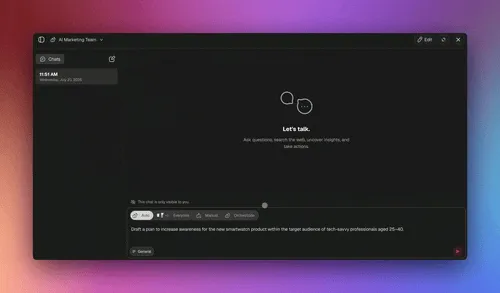
An AI Team chat has four modes. Pick one above the message box. A new chat starts in Auto.
| Mode | Who replies | Use it for |
|---|---|---|
| Auto | The single best agent for the message. It is not a fan-out | Routing, such as a support question that can be billing, technical, or sales |
| Everyone | Every agent on the team, one after another | Many views on one question |
| Manual | Only the agents you select, one after another | A fixed pipeline, such as researcher then writer |
| Orchestrate | A lead plans the steps, gives each step to an agent, and adds a review step | Multi-stage work that needs a plan |
Common names for these patterns map to the modes like this:
| Pattern name | Closest Taskade mode |
|---|---|
| Supervisor, router, or hierarchical | Auto for one reply. Orchestrate for a planned handoff |
| Sequential, round-robin, or pipeline | Manual with the agents in order, or Orchestrate |
| Group chat, or many views | Everyone |
Agents in a team reply one after another, not at the same time. In an automation, the Ask an agent team step offers Auto, Everyone, and Orchestrate. See AI Teams for the steps.
A Hand-Off, Step by Step
A handoff is the moment one agent finishes and the next one starts. In Orchestrate mode, the lead passes each agent the step it owns. Here is one support request.
The billing agent answers from its own knowledge, for example a connected invoices project. Connect the same project to every agent that needs it, and they all read the same, current data.
Single Agent vs Team
Use one agent for one job. Use a team when the work needs different specialists, or when one agent must cover too many unrelated topics.
| Use one agent when... | Use a multi-agent team when... |
|---|---|
| The job is one skill (answer, summarize, draft) | The job has stages (research, then write, then review) |
| One knowledge set covers it | Each stage needs different knowledge or tools |
| You want the simplest setup and the lowest credit use | Quality improves when a second agent checks the first |
| A person prompts it each time | The handoffs run from an automation |
See Custom AI Agents to build each specialist first.
Taskade Genesis vs Code Tools
The developer world has strong multi-agent frameworks: CrewAI, AutoGen, LangGraph, and OpenAI's Agents SDK. They are excellent if you write Python and want to assemble the plumbing yourself. Taskade Genesis aims at a different person: the operator who wants a working agent team today, in a workspace, without code. Here is an honest side-by-side.
| Taskade Genesis | CrewAI | AutoGen | LangGraph | OpenAI Agents SDK | |
|---|---|---|---|---|---|
| Setup | Describe it in plain English | Python, role-based | Python, conversational | Python, graph of nodes | Python / TypeScript |
| Code required | None | Yes | Yes | Yes | Yes |
| Orchestration | Auto · Everyone · Manual · Orchestrate | Role / sequential | Group chat | Graph + branching | Handoffs + routines |
| Shared memory | Connect the same workspace projects to each agent | RAG you configure | Conversation history | State you checkpoint | Sessions you wire |
| Tools per agent | Built-in tools + 100+ integrations | Bring your own | Bring your own | Bring your own | Bring your own |
| Where it runs | Hosted, shareable, publishable as an app | Your infrastructure | Your infrastructure | Your infrastructure | Your infrastructure |
| Best for | Operators, teams, non-coders | Python devs, role workflows | Research, human-in-the-loop | Complex state machines | OpenAI-stack production |
A few honest notes so you choose well. CrewAI has the gentlest learning curve of the code frameworks and a clean role model, great when you already write Python. LangGraph gives the most control for complex branching and is the most production-mature of the four. AutoGen is strong for conversational, human-supervised research, though Microsoft folded its future into a broader agent framework. OpenAI's Agents SDK is the supported successor to the Swarm reference project, built around handoffs and guardrails on the OpenAI stack. If your team writes code and wants maximum control, those are real options.
The reason to pick Taskade is the data. Your projects and databases already live in the workspace. Connect them to each agent as knowledge, and the team reads current data with no database to set up. For a ranked tour of the category, see Best Multi-Agent Platforms.
Multi-Agent vs One Big Model
A team wins when the work splits into specialties or benefits from one agent that checks another. A team also uses more credits, so use it when the job earns it.
| Use a team when... | Stay with one agent when... |
|---|---|
| The job has stages (research → write → review) | The job is one skill |
| You want several views on one question | The task is quick and linear |
| A second agent checking the first raises quality | Speed and low credit use matter most |
| Different stages need different tools or knowledge | One knowledge set covers everything |
Important: To chat with several agents at once, use AI Teams.
See a Multi-Agent Team Run
Clone a live team and watch the agents work. These are Taskade Genesis apps from the Community Gallery. Open one, clone it, and look at how the team is set up.

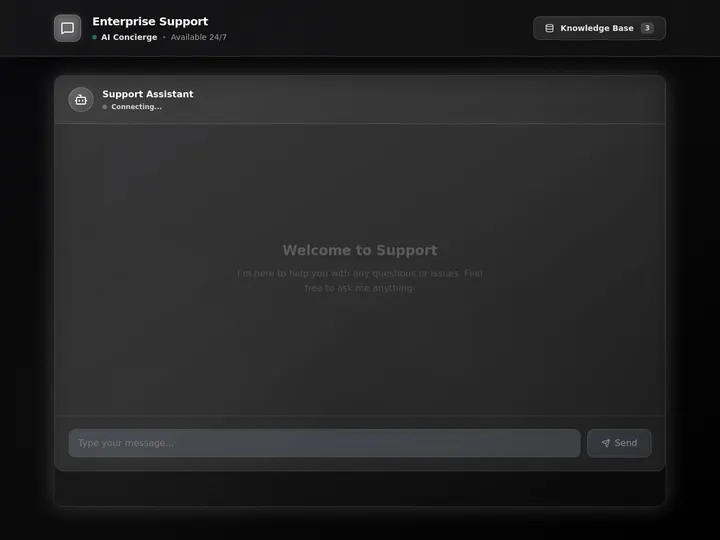
- Sales Agent Studio runs a lead qualifier, a follow-up writer, and a CRM updater.
- Support Agent triages messages, drafts answers from your docs, and routes what it cannot solve.
Watch Agents Hand Off Work
Each agent in a team brings its own tools. One agent searches the web, another updates your CRM, and a third posts to Slack.
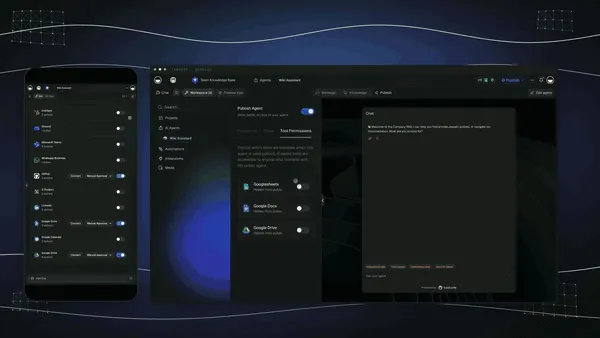
Every agent can use built-in tools and the 100+ bidirectional integration catalog: triggers pull events in, actions push data out.
Build a Multi-Agent Team
You can build a working team in about ten minutes, with no code.
- What you need: A workspace on Pro or a higher plan. AI Teams need Pro or a higher plan.
- Time: About 10 minutes.
| Part | What you do |
|---|---|
| 1. Name the outcome | Write the goal in one sentence: "Turn a topic into a fact-checked blog post." The goal decides the specialists |
| 2. Create the specialists | In AI Agents, create each agent, or ask Taskade EVE. Give each one a role and the knowledge it needs |
| 3. Give each agent tools | Turn on only the tools each role needs |
| 4. Make the team | In AI Teams, create an AI Team and add the specialists |
| 5. Run a real example | Pick a mode, send one real task, and watch the handoffs |
               ┌────────────────────────────────────┐
   GOAL  ───▶  │ AI Team  (mode: Orchestrate)       │
               └─────┬────────────┬────────────┬────┘
                     ▼            ▼            ▼
               ┌──────────┐ ┌──────────┐ ┌──────────┐
               │ Research │ │  Writer  │ │ Reviewer │
               │  agent   │ │  agent   │ │  agent   │
               └─────┬────┘ └─────┬────┘ └─────┬────┘
                     └────────────┼────────────┘
                                  ▼
               ┌────────────────────────────────────┐
               │ Connected projects                 │
               │ that each agent reads as knowledge │
               └────────────────────────────────────┘
Or ask Taskade EVE to do it for you. Taskade EVE creates the agents and the team.
Create a researcher, a writer, and an editor, then group them into a content team.
Set Up Your AI Agents
Use agents you already have, or create new ones.
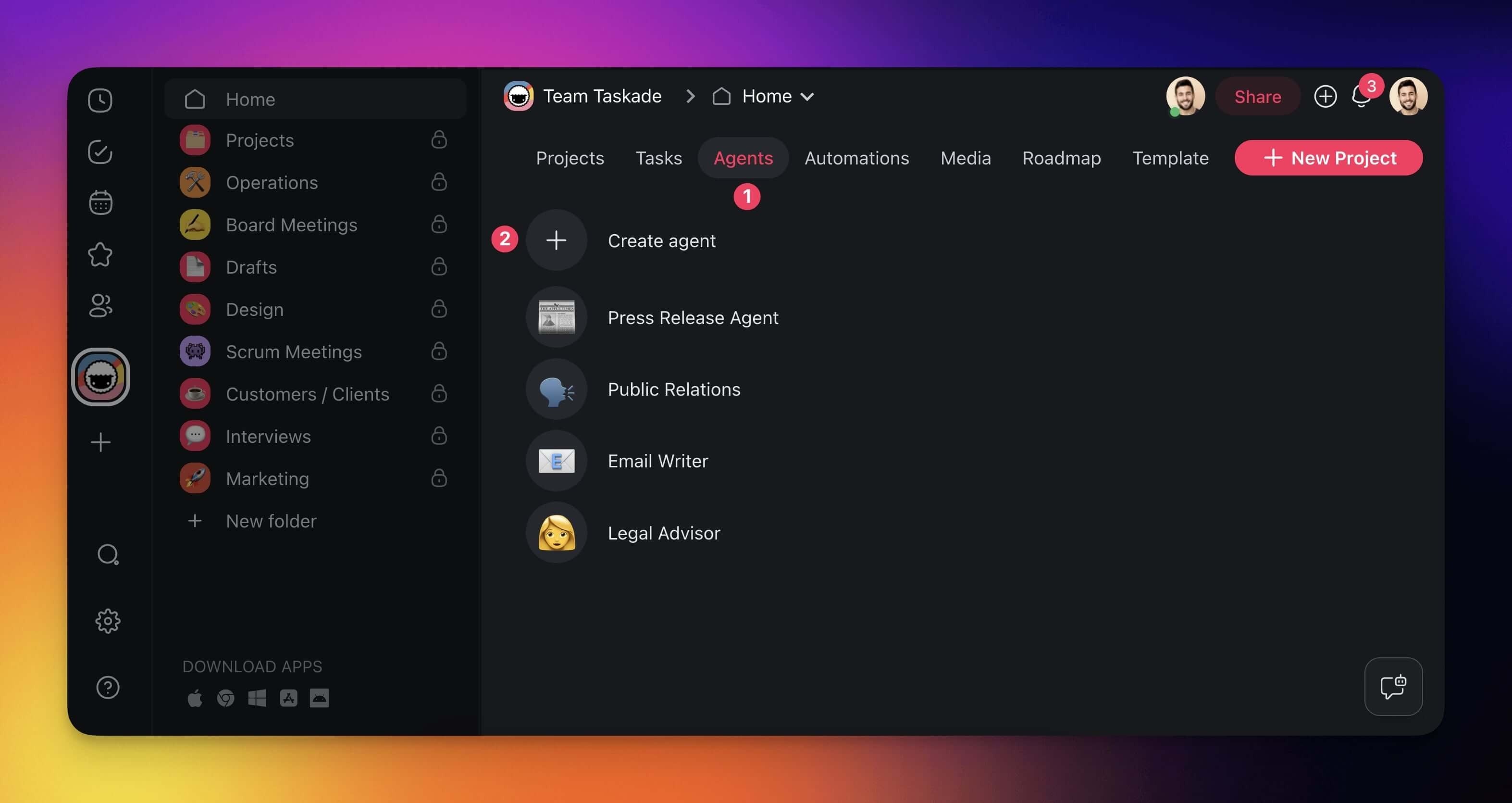
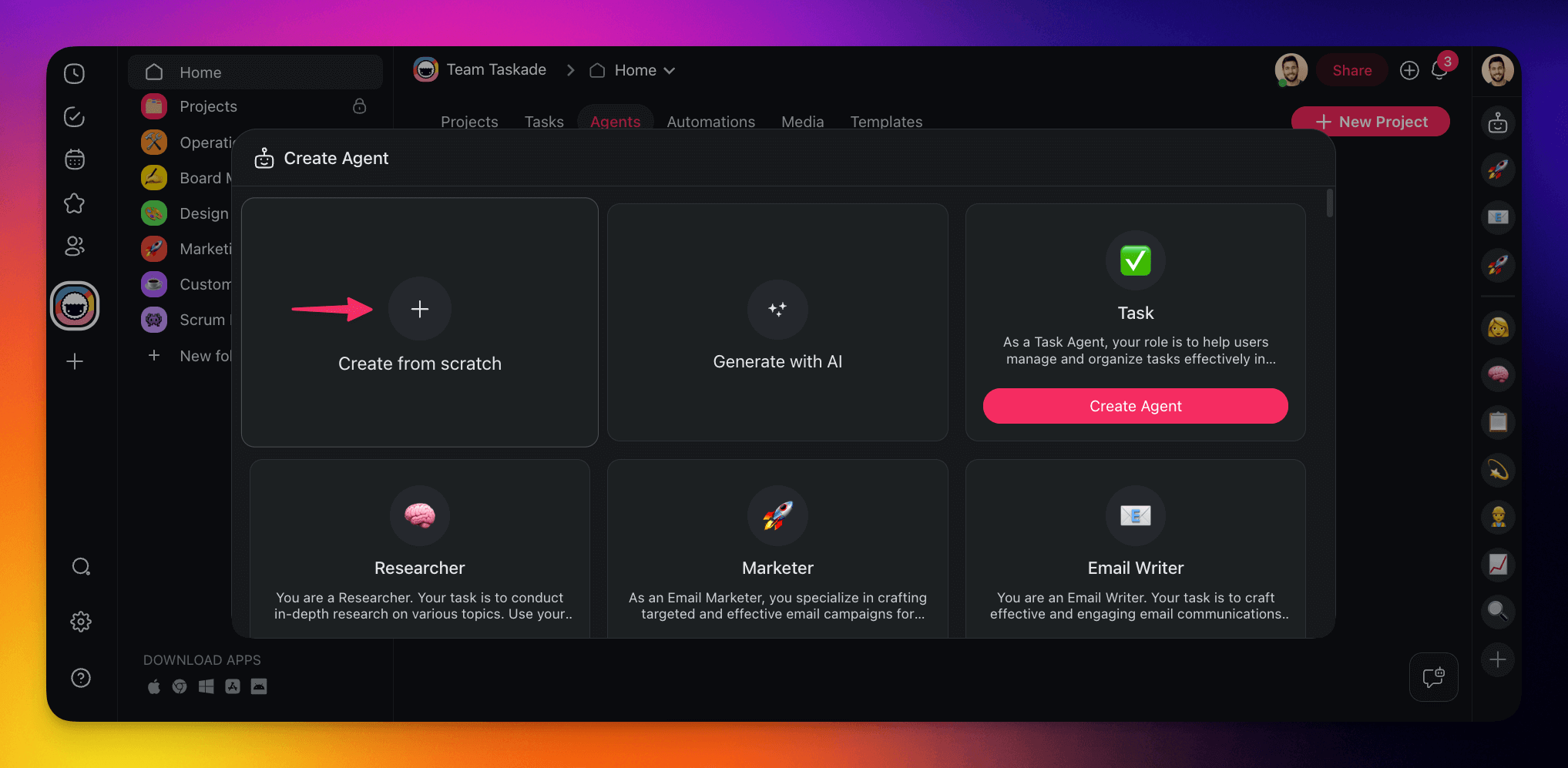
- In your workspace sidebar, open AI Agents.
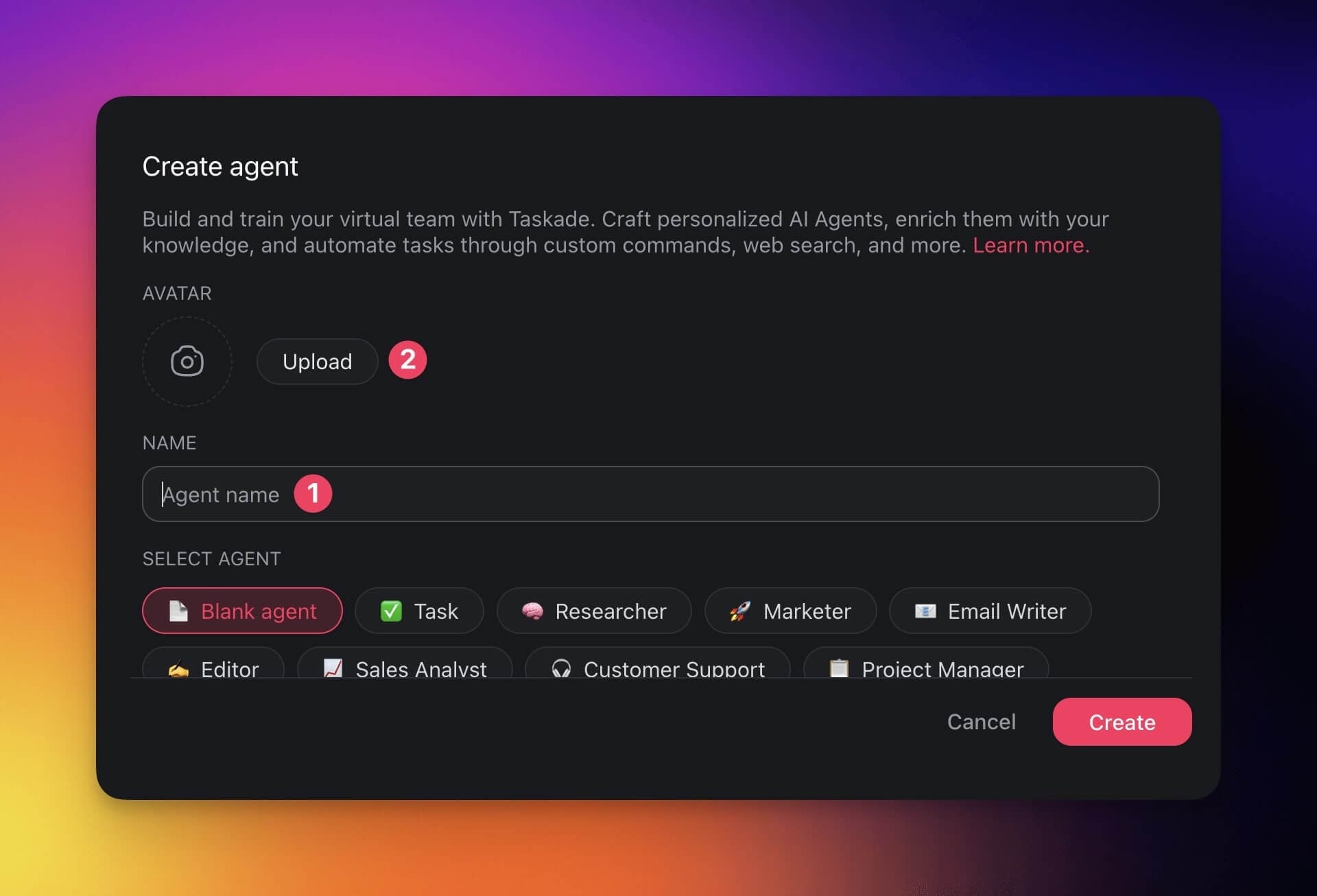
- Click Create to start blank, Templates to pick a ready-made agent, or Generate to describe one.
- Give the agent a clear name and an avatar.
Note: If a task comes up often or takes more than 15 minutes of focus, an agent can save you hours each week.
Team Up with AI Agents
You can also put several agents to work inside a project, with no team.
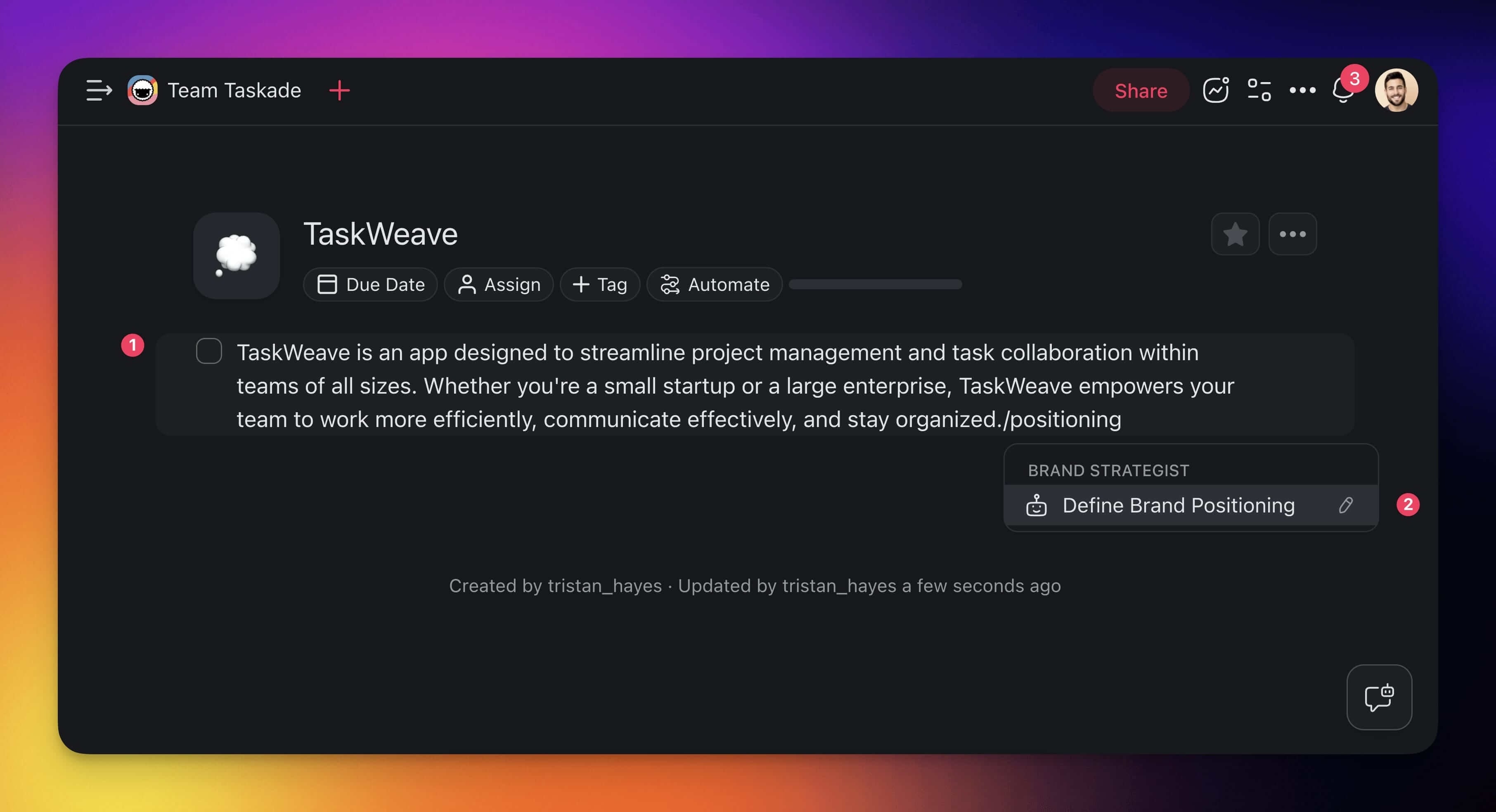
- Click the task you want an agent to work on.
- Type
/and the start of a command name, then press Enter. - Click anywhere in the project to close the agent window.
- Do the same on other tasks with other agents' commands.
The agent's name shows under the task while it works. Click the name to see the chat for that task.
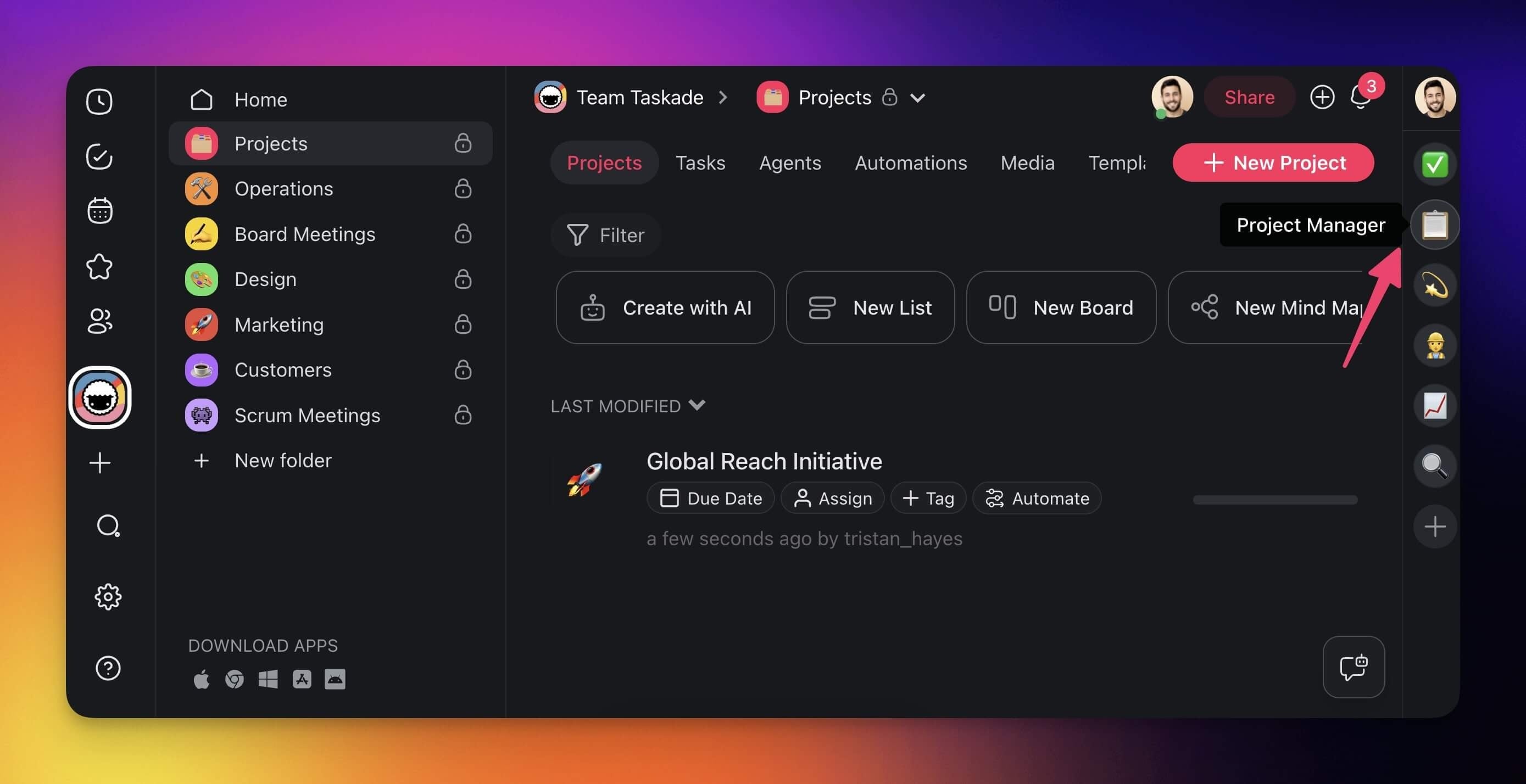
To give many tasks to one agent, select the tasks and click Assign in the toolbar, then pick the agent. Starred agents also show in the side ribbon, one click away.
Iterate on the Output
- Click the agent's name under the task.
- Type a follow-up prompt in the chat.
- Read the earlier replies in the same chat to compare versions.
Note: Not sure where to start? See the Guide to Writing Agent Prompts.
Chat with Agents & Your Team
A project chat can include your teammates and an agent at the same time.
- Open the chat in a project.
- Pick an agent or an AI Team from the menu at the top.
- Type a prompt.
A line under the message box tells you who can see the chat. See AI Agent Chat.
Copy / Duplicate Multi-Agents
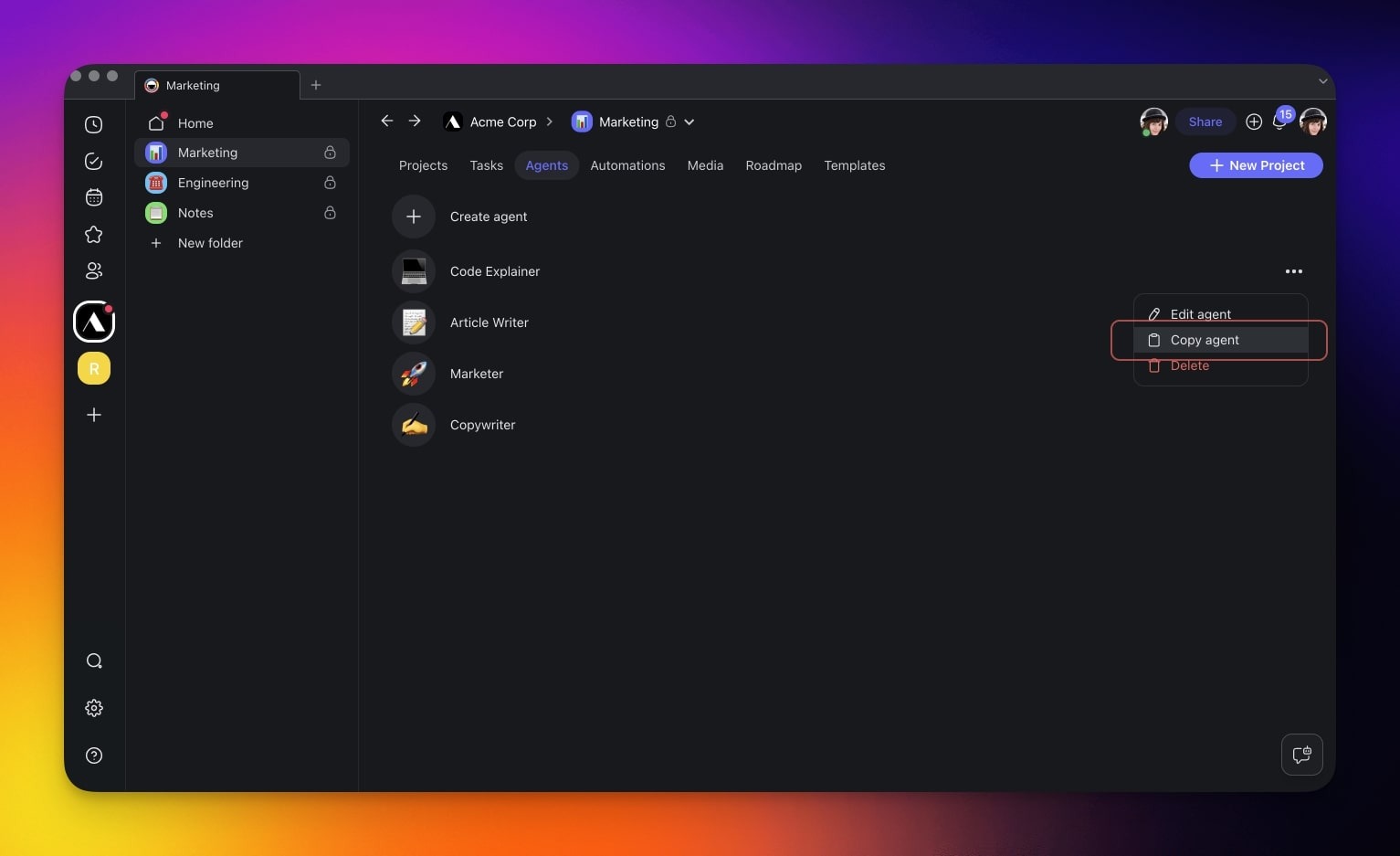
- In AI Agents, click ··· next to the agent.
- Click Copy agent.
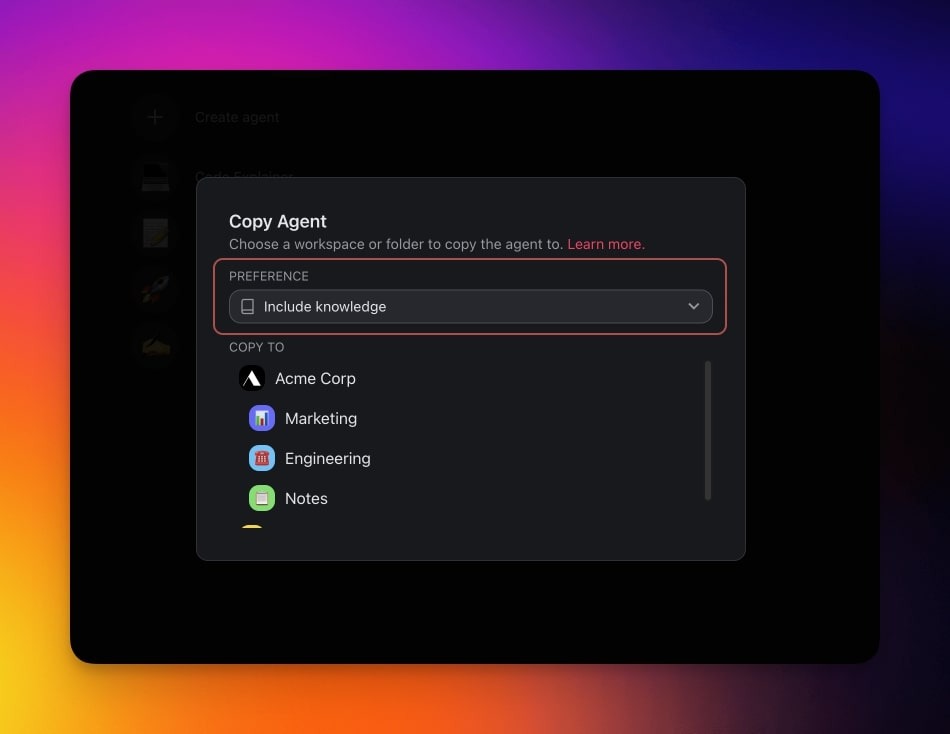
- Pick the target workspace or folder.
- Turn Include knowledge on or off.
Share Agents
- Open the agent from AI Agents.
- Click the Publish tab.
- Turn on the Publish Agent switch.
- On the Share sub-tab, click Copy link next to Agent Share Link.
- Send the link to the people who need the agent.
Screenshot of the earlier share menu
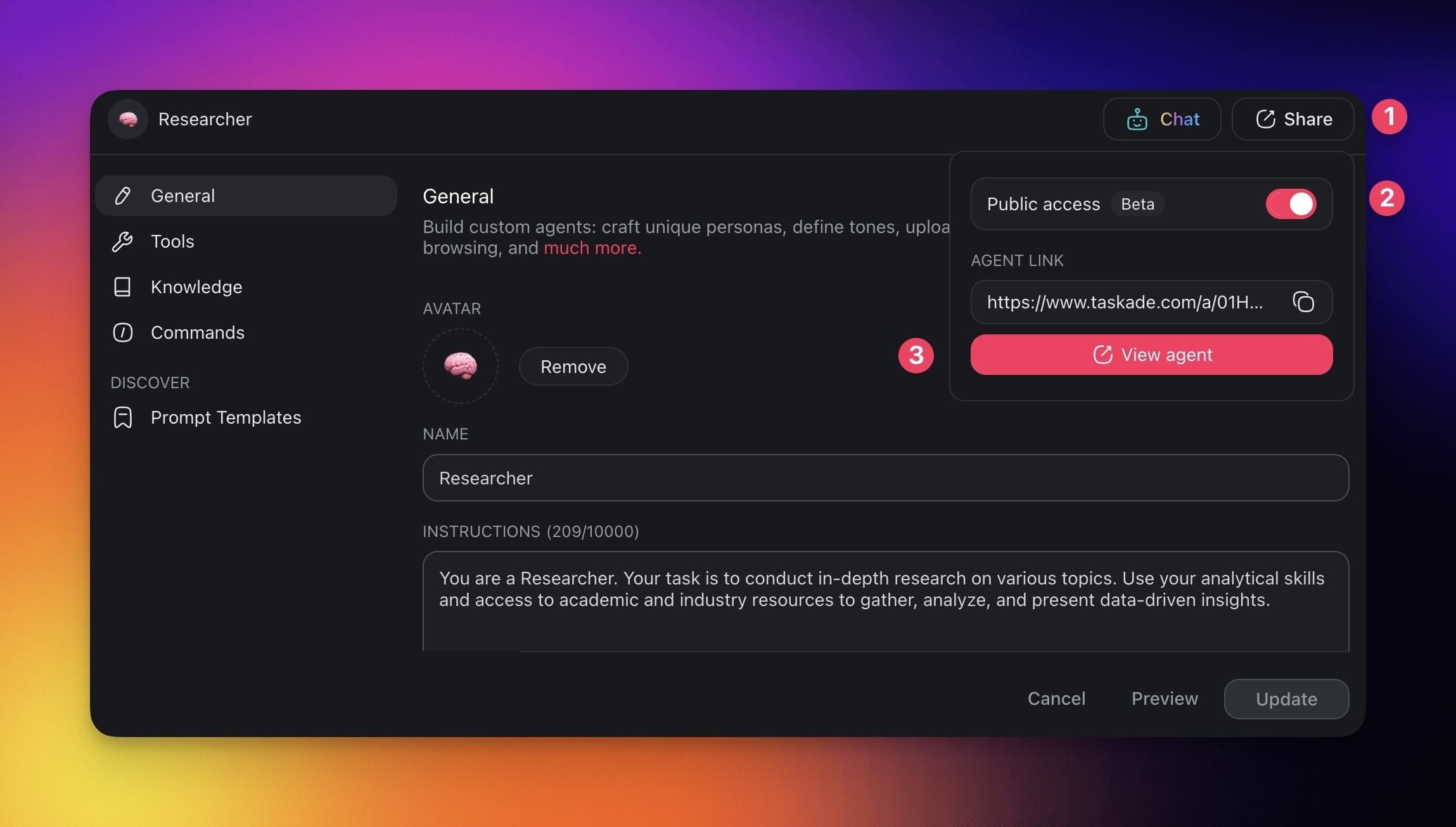
See Public Agent Link and Visitor Inbox.
Workspace DNA: Memory · Intelligence · Execution. Browse agents and apps built by the community at taskade.com/apps.
Different tools for each agent: Each agent in a team has its own tools and custom tools. One agent searches the web while another runs an automation that updates your CRM through the 100+ integration catalog.
MCP Connectors: Taskade runs a hosted MCP (Model Context Protocol) server on paid plans. An MCP client can connect to the same workspace your agents work in.
Multi-Agent Team Templates
Explore multi-agent apps from the community:
- Team Capacity Planner: Plan who works on what.
- Client Portal: Agents that help manage customers.
- Event Management Portal: Agents that coordinate an event.
Build your own → taskade.com/create
Test Your Team
Run the team on three real examples. Then read the result against this table.
| What you see | What it means | What to fix |
|---|---|---|
| One agent answers everything | The mode is Auto, which picks one agent | Switch to Manual, Everyone, or Orchestrate |
| The writer ignores the research | The writer cannot read the source | Connect the same project to both agents |
| Auto picks the wrong agent | The roles are too vague | Make each agent's instructions name its job clearly |
| Output is generic | Knowledge is thin | Add the right files, links, and projects to each agent |
| Credits drain fast | Too many agents reply, or the models are heavy | Use Auto or Manual, and set fast models on helper agents |
| The team works every time | The handoffs are correct | Publish it in a Taskade Genesis app so others can clone it |
Credit Considerations
Each agent reply uses credits. A three-agent run in Everyone mode costs about three single replies. Use TSK-Instant or TSK-Standard for helper agents. Give the agent that writes the final answer TSK-Thinking, or TSK-Reasoning on Business or a higher plan.
Error Handling
Orchestrate plans again after each round, up to a fixed number of rounds. At that limit the chat says so and stops. Narrow the request, or split it into smaller messages, and send it again.
One Workspace, Living Software
A multi-agent team is one part of a larger idea. In Taskade Genesis you describe software, and the workspace runs it. Your agents are the team, your projects are the memory, and your automations do the work.
| Pillar | What it is | How a team uses it |
|---|---|---|
| ▲ Memory | Projects and databases in multiple views (List, Board, Table, Mind Map, Docs, Gantt Chart, Calendar, Actionsheet, Org Chart) | The shared memory each agent reads as knowledge |
| ■ Intelligence | Custom AI agents with tools, persistent memory, AI Teams, public sharing, and frontier models, plus Taskade EVE | The specialists that decide and act |
| ● Execution | Automations with branching, looping, and 100+ bidirectional integrations | Triggers that start the team and actions that push results out |
This loop is Workspace DNA: Memory feeds Intelligence, Intelligence starts Execution, and Execution writes new Memory. The agents read live data, run on frontier models from top AI labs, and start automations that update your projects.
AI Apps let you describe an app and publish it. AI Agents are the team inside that app. Automation runs the work on a schedule or a trigger. The Community Gallery and App Kits let others clone a team you built once. Start free at taskade.com/create.
Frequently Asked Questions
What is a multi-agent system?
A multi-agent system is a team of AI agents that work toward one goal, each with its own job. One researches, one writes, and one reviews. In Taskade, you group them in an AI Team and pick how they share the work.
What is the difference between multi-agent AI and one agent?
Multi-agent AI splits a job across several specialized agents instead of one agent that does everything. Use it when the work has stages or improves when one agent checks another. A single agent is better for quick, one-skill tasks.
How do agents collaborate in Taskade?
Put the agents in an AI Team and pick a mode. Auto sends each message to the single best agent. Everyone and Manual ask several agents, one after another. Orchestrate lets a lead plan the steps and give each step to an agent. See AI Teams.
Do I need code to build an agent team?
No. Describe each agent's role in plain English, then add the agents to a team in AI Teams. You can also ask Taskade EVE to create the agents and group them. Code-first frameworks like CrewAI, AutoGen, and LangGraph require Python.
How does Taskade compare to CrewAI or AutoGen?
CrewAI, AutoGen, and LangGraph are Python frameworks for developers who build multi-agent systems in code. Taskade builds the same kind of team without code, inside a workspace that already holds your projects. See the comparison table above and Best Multi-Agent Platforms.
Which multi-agent patterns does Taskade support?
A router pattern maps to Auto, which picks the single best agent. A pipeline maps to Manual or Orchestrate. A group discussion maps to Everyone. Agents in a team reply one after another, not at the same time.
How many agents can join a team?
Add at least one agent, and add as many as the work needs. All agents in a team must be in the same workspace. Each agent that replies uses credits, so a three-agent Everyone turn costs about three replies. See AI Usage & Credits.
Do agents in a team share memory?
Yes. Agents share memory through the projects you connect to them. Connect the same project to several agents, and they all read the same, current data. In a team chat, the agents also see the conversation. See Agent Knowledge & Memory.
When do I need a team instead of one agent?
Use a team when the work has stages that need different knowledge or tools, or when a second agent checking the first improves quality. Use one agent when one skill and one knowledge set cover the job.
Can I share an agent team?
Yes. Put the team in a Taskade Genesis app with its own link, an optional custom domain, and one-click clone. Browse live examples like the Sales Agent Studio and Support Agent in the Community Gallery.
Which plans include agent teams?
AI Teams need Pro or a higher plan. This covers every way to get a team: the generator, a blank team, and Taskade EVE. Free and Starter workspaces can still use single custom agents. AI usage is metered in credits, not seats. See pricing.
Which AI models do the agents in a team use?
Taskade provides frontier AI models from top AI labs, including OpenAI GPT and open-weight models such as DeepSeek and Qwen. Users on paid plans can select their preferred model for AI agents and app generation. Claude runs on your own API key (BYOK) in custom agents on Pro and up, and in automations.
Related guides
- AI Teams: Chat with several agents, and pick the mode
- Custom AI Agents: Build the specialists first
- Build an AI Agent: The Complete Playbook: Create, train, equip, and share one agent
- Taskade EVE: Ask the meta-agent to build agents and teams for you
- How Taskade Genesis Works: Workspace DNA: The model behind multi-agent apps
- Projects & Databases: The Memory Pillar: Data that agents read
- Automations: The Execution Pillar: Run agent teams from automations
- Agent Knowledge & Memory: Give agents the same knowledge
- Tools for AI Agents: The tools each agent can use
- MCP Connectors: Connect an MCP client to your Taskade workspace
Related reading
- Best Multi-Agent Platforms: A ranked tour of the multi-agent category
- What Are AI Agents?: The plain-English explainer behind agent teams
- Multi-Agent Systems (Wiki): The concept, defined
- AI Agents · AI Apps · Automations: The three pillars, on one page each
Try It: Build Your First Team
You do not need code or a team of engineers. Describe the outcome, let Taskade EVE create the specialists, and run them as an AI Team inside one workspace.
Start building at taskade.com/create →
▲ ■ ● Memory feeds Intelligence, Intelligence starts Execution, and Execution writes new Memory.