

What Is the AI Chat?
Taskade's AI Chat is an AI chatbot that will help you generate task lists and notes, summarize text, write content, brainstorm and mind map ideas, and more. All this is possible inside the project chat box.
Unlike a generic AI chatbot, AI Chat reads the full context of the project you're in. Ask it "what's the status of my Q3 launch?" while inside your Q3 launch project and it already knows what you mean. It also supports streaming responses from 15+ frontier models (OpenAI, Anthropic, Google, plus open-source) that you can switch between mid-conversation.
TL;DR: Taskade AI Chat is the chat box built into every project. Open a project, click the robot icon, type a prompt, and the AI answers using the contents of that project. It runs on 15+ frontier models you can switch mid-chat. Want it smarter? Point the chat at a custom AI agent so it knows your data and tools.
Watch Taskade AI Chat in action:
Powered by Taskade Genesis — Taskade is now a full-stack AI productivity platform. Build apps, deploy agents, and automate workflows from a single prompt. Learn more about Taskade Genesis.
Note: Visit this article to learn about other Taskade AI features.
AI Chat (Project)
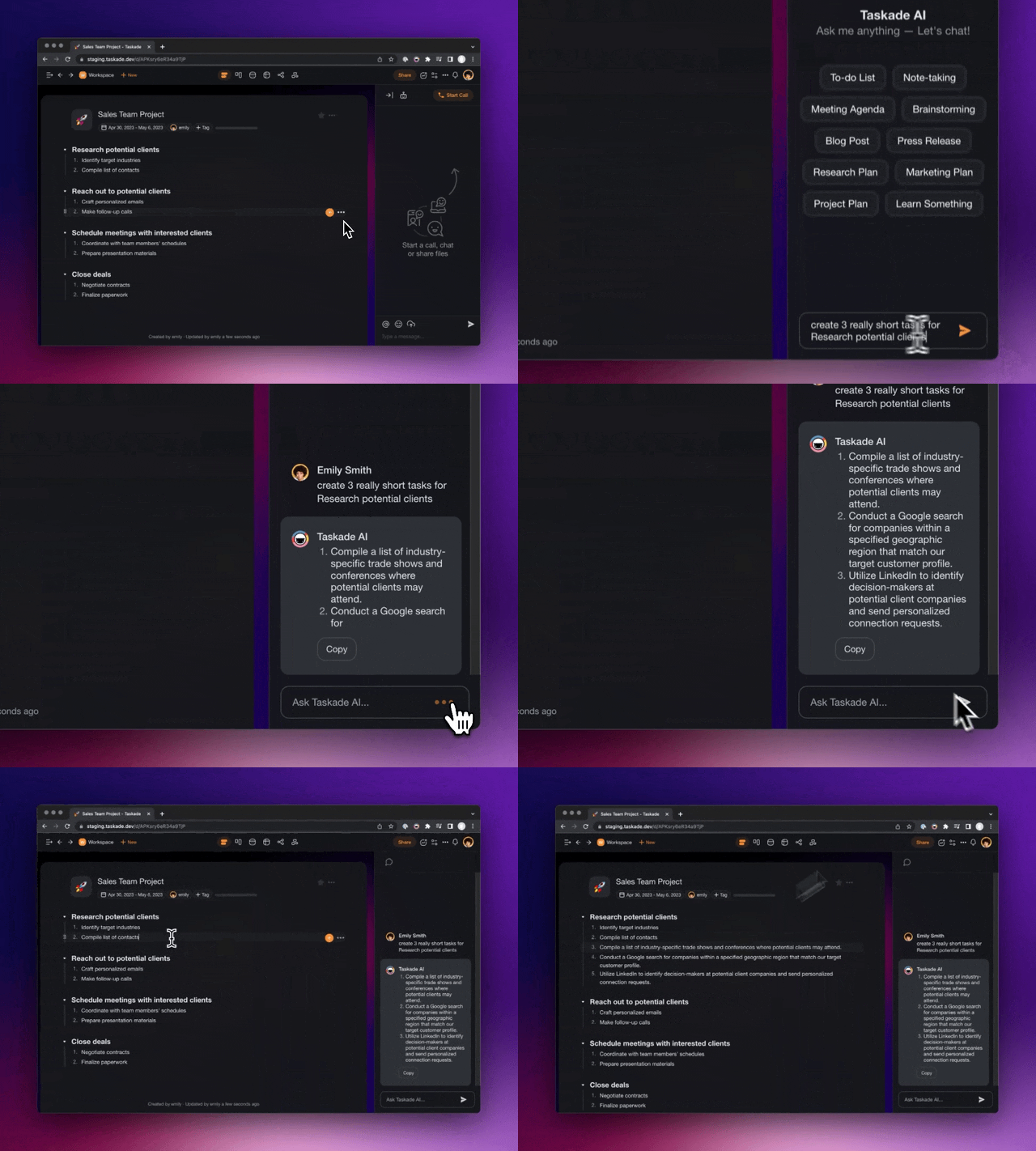
Open a project.
Click the robot icon 🤖 at the top of the chat box.
- (method #1) Choose a relevant topic from the list.
- (method #2) Type a prompt using natural language.
Press ⌨️ Enter to generate a response.
Click Copy to copy the output or Copy to project to paste into to the editor.
Note: Taskade will save your chat history so you can continue the conversation when you re-open the AI Chat window.
Custom Agents Chat
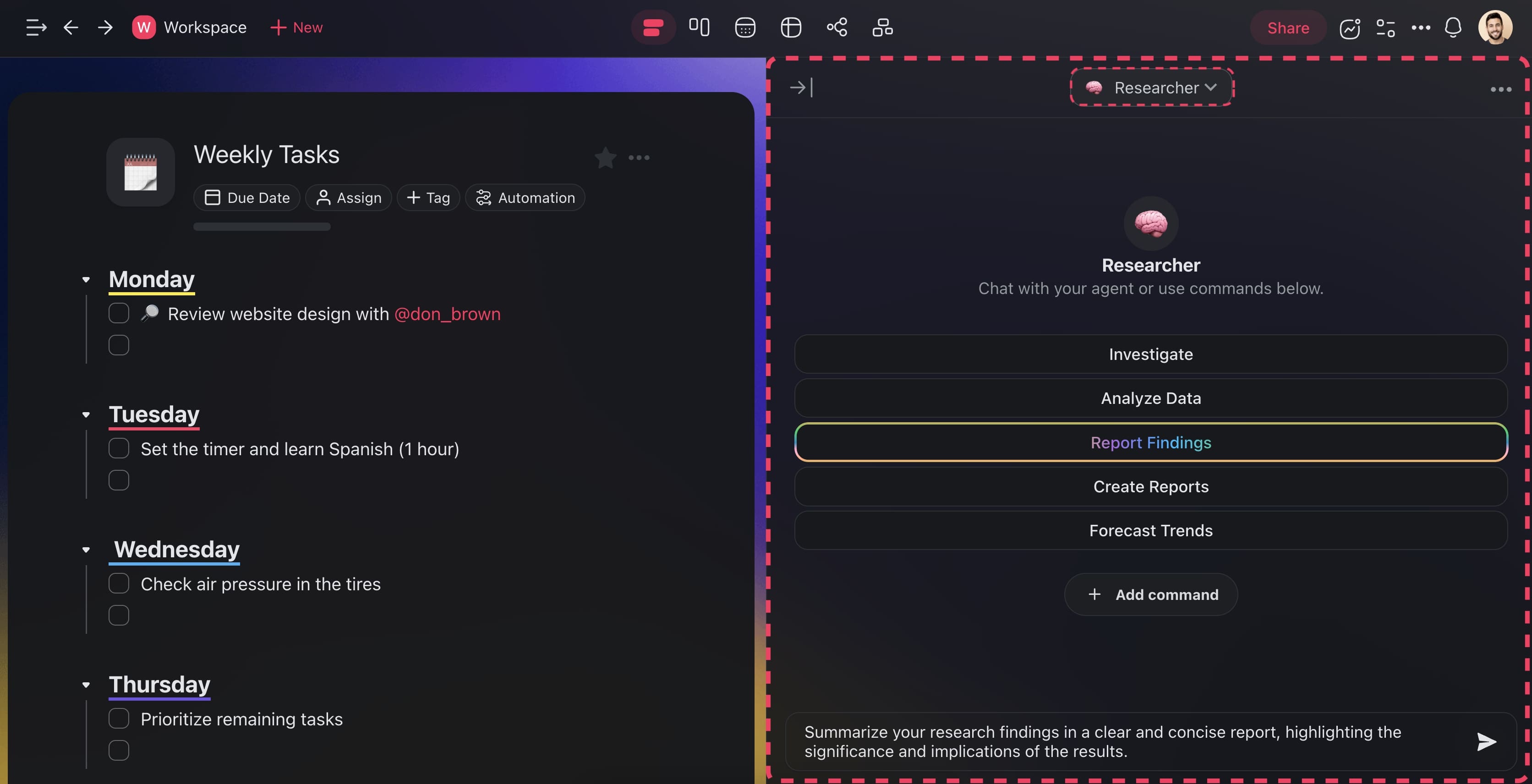
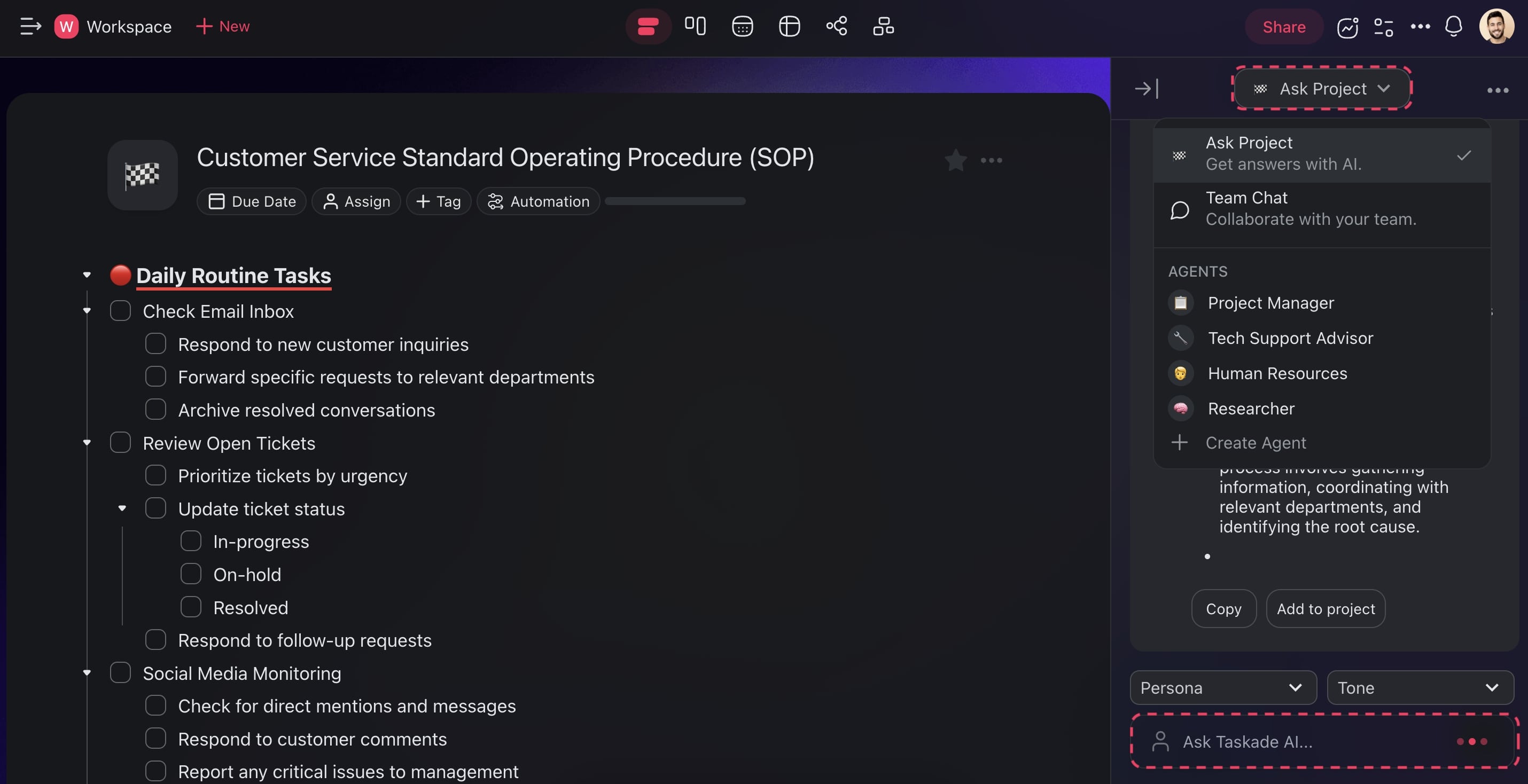
You can now chat with your custom AI agents directly in the project chat.
- Open a project and click the chat balloon icon 💬 (bottom-right).
- Click the button at the top of the chat window.
- Choose your custom AI agent from the list.
- Type your prompts to interact with the agent.
Note: Type "/" to show the list of custom agent commands in the chat.
Team AI Chat in Projects
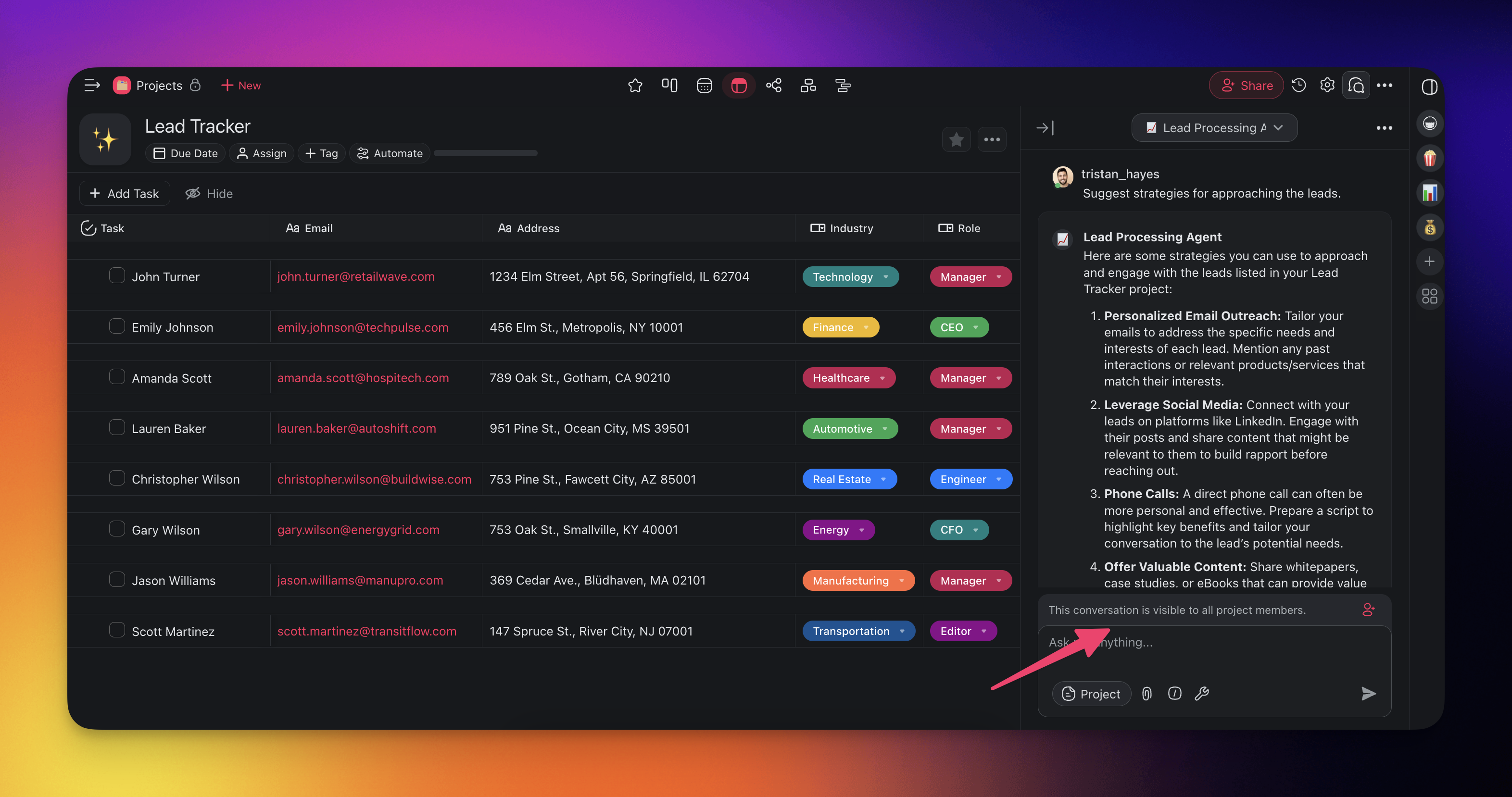
Shared AI chats allow you and your team to interact with Taskade AI in the same space, search the web, share ideas, get real-time insights, and see what others are asking.
- Open the chat box (see the previous sections).
- Choose Taskade AI from the drop-down at the top.
- Type a prompt to start a conversation.
- (optional) Click the ⁺ 👤 button to invite people to the conversation.
Note: When you start a shared AI chat, a tooltip at the bottom of the chat box will let you know if the chat is public or private, so you can see who has access.
Here are a few ideas on when you can use this feature:
| 🪄 Use Case | 💬 Description |
|---|---|
| Planning & strategy | Team members can ask AI for insights on project goals, timelines, and resources. AI can suggest strategies, milestones, and help keep the team aligned on the overall project vision. |
| Real-time problem solving | When issues arise, AI can provide immediate suggestions, troubleshoot problems, and help brainstorm solutions based on the team's progress and objectives. |
| Knowledge sharing | AI can retrieve documentation, guidelines, and best practices from its knowledge base, which allows team members to quickly access important resources and information. |
| Decision-making support | AI can assist in making data-driven decisions by analyzing project data, offering insights, and suggesting potential actions based on team input and project status. |
| Onboarding new team members | AI can help onboard new team members by providing an overview of project contents, pointing to relevant resources, and answering any initial questions. |
| Team communication | AI can facilitate team discussions, offer updates, answer questions, and provide additional context to ensure no information is missed. |
| Quality control & feedback | Team members can interact with AI to ensure quality standards are met, review deliverables, and get feedback based on established guidelines. |
Set AI Chat Persona
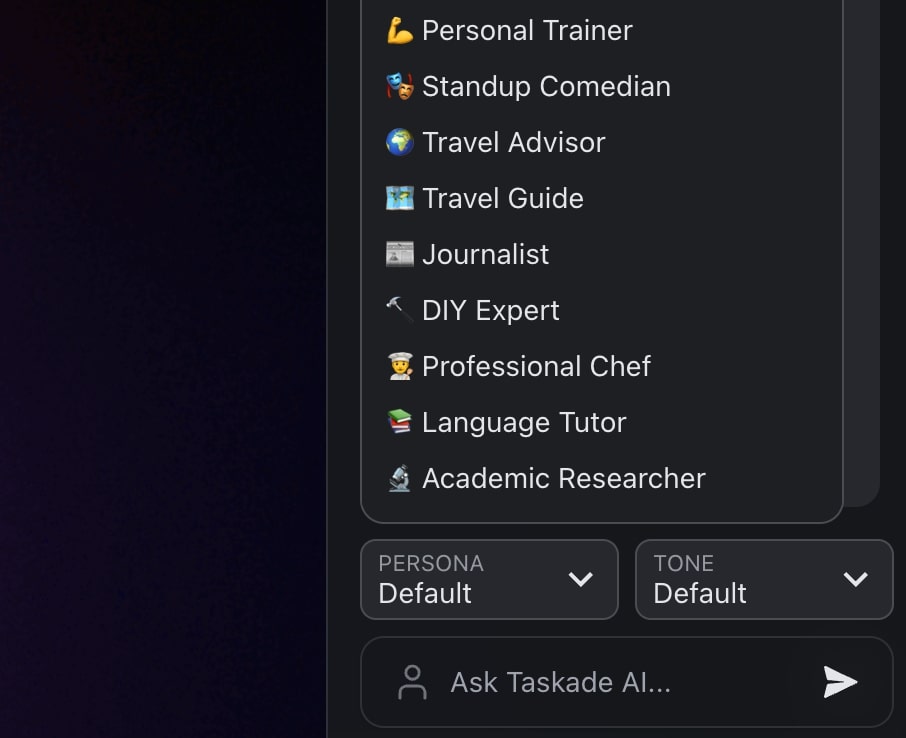
Assign specific roles to the AI Chat to receive a more personalized output.
- Click the robot icon 🤖 at the top of the chat box.
- Click the PERSONA pull-down button at the bottom of the chat.
- Choose a role and type your prompt.
💡 Note: Visit 👥 AI Chat Personas to learn more.
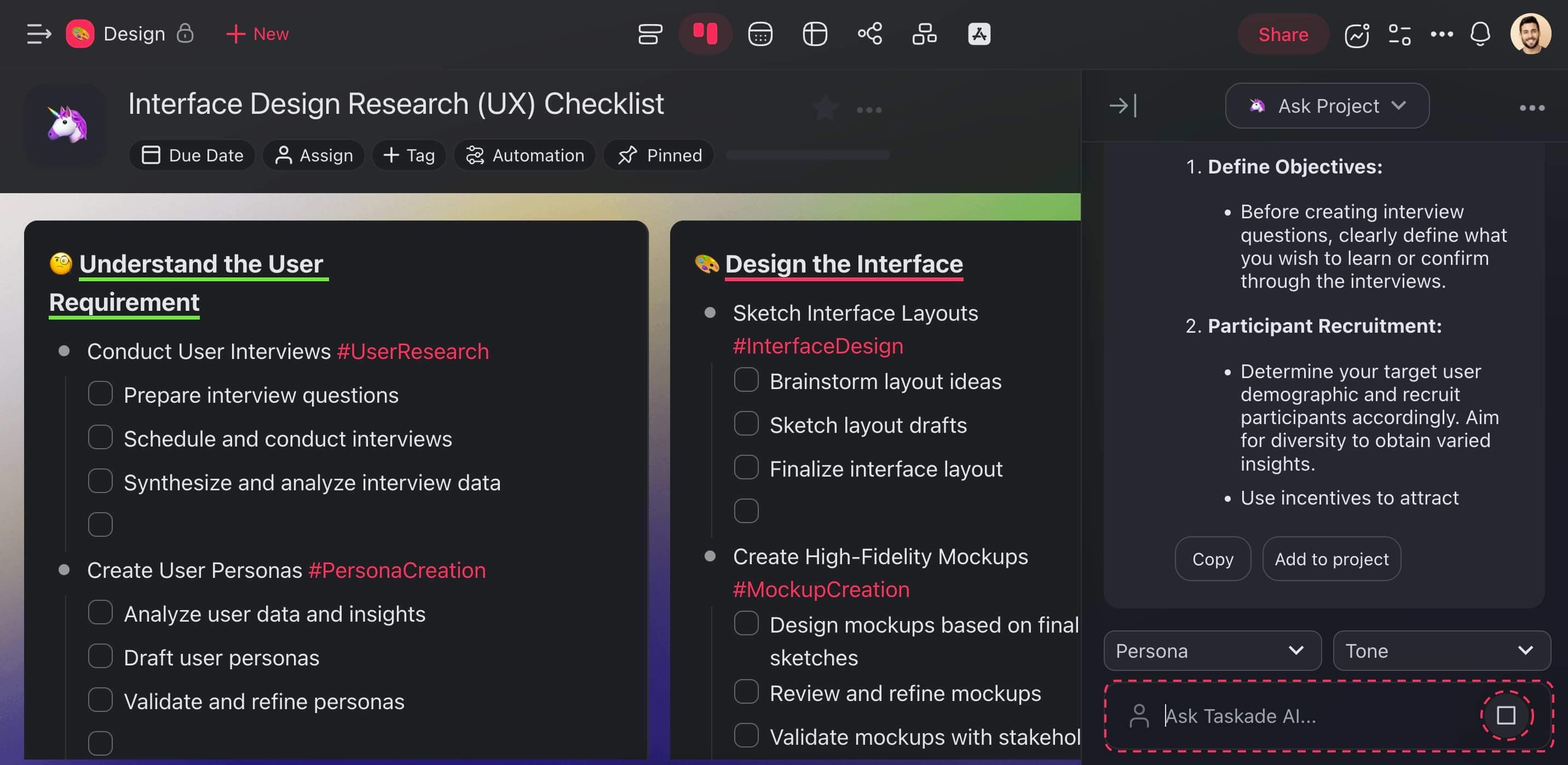
Stop Generation
Made a mistake? Click the stop button 🔲 at the bottom of the AI chat.
Set AI Chat Tone
Change the tone of the AI Chat output from confident to persuasive and more!
- Click the robot icon 🤖 at the top of the chat box.
- Click the TONE pull-down button at the bottom of the chat.
- Choose a tone and type your prompt.
💡 Note: Visit AI Chat Tones to learn more.
Review and Clear Chat History
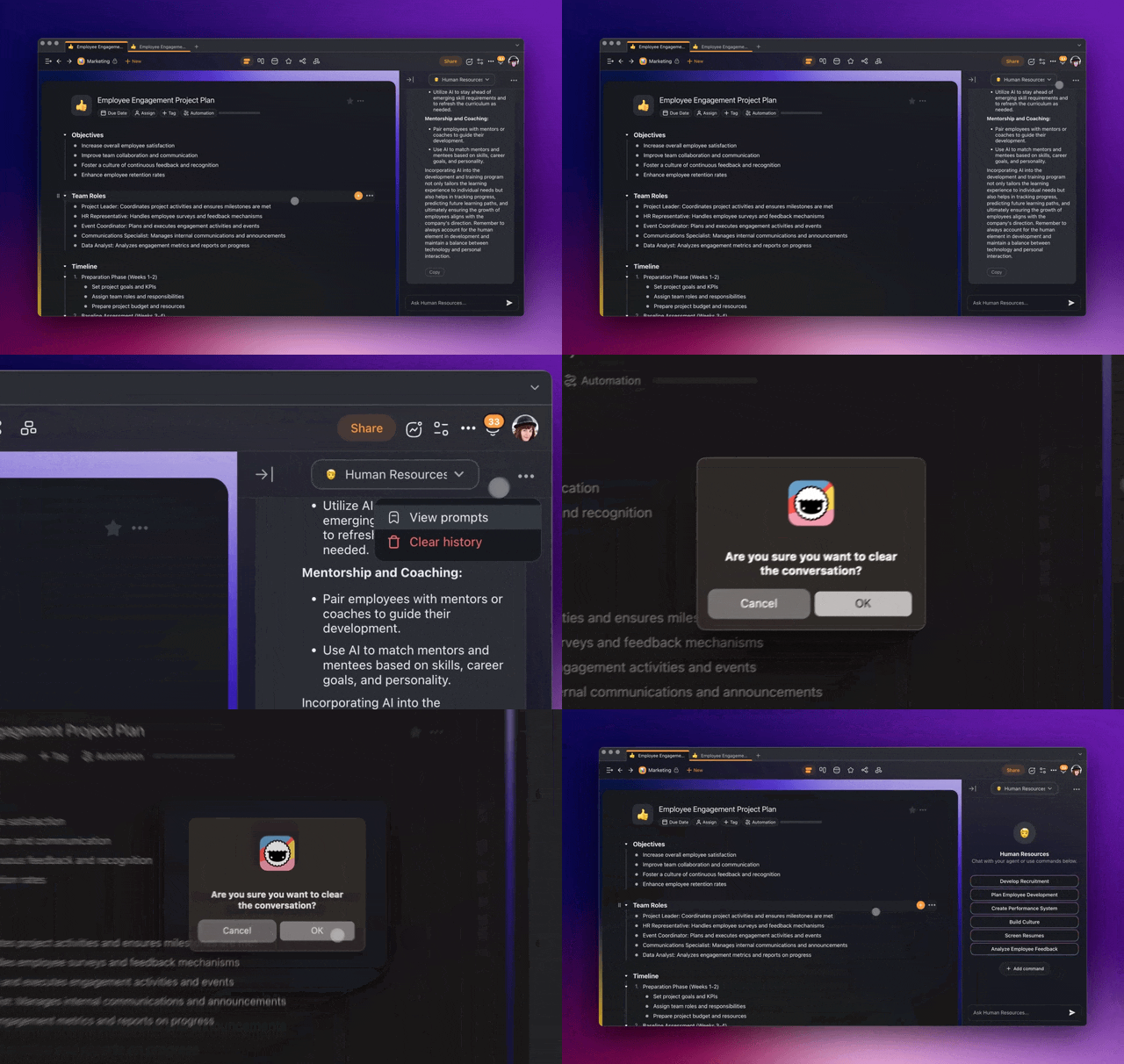
You can view the history of your conversations and clear AI Agent chat history.
- Click the three dots ··· in the top-right corner of the AI Chat.
- Choose 🗑️ Clear history to delete the chat log.
Start a Q&A Session
You can now engage in Q&A sessions directly within your projects.
- Upload reports and ask for key findings.
- Analyze complex data in spreadsheets.
- Review legal contracts quickly.
- Get financial insights from uploaded statements.
- Extract customer feedback insights.
- Access key research findings in papers.
- And much more!
Here's how it works:
- Open and enable AI Chat in your project.
- Start asking questions! AI Chat will answer based on the contents of the project.
Note: You can also engage in a Q&A session based on uploaded documents. Visit AI Chat with Documents (PDF, CSV, Docs) to learn more.
Prompt Templates Library
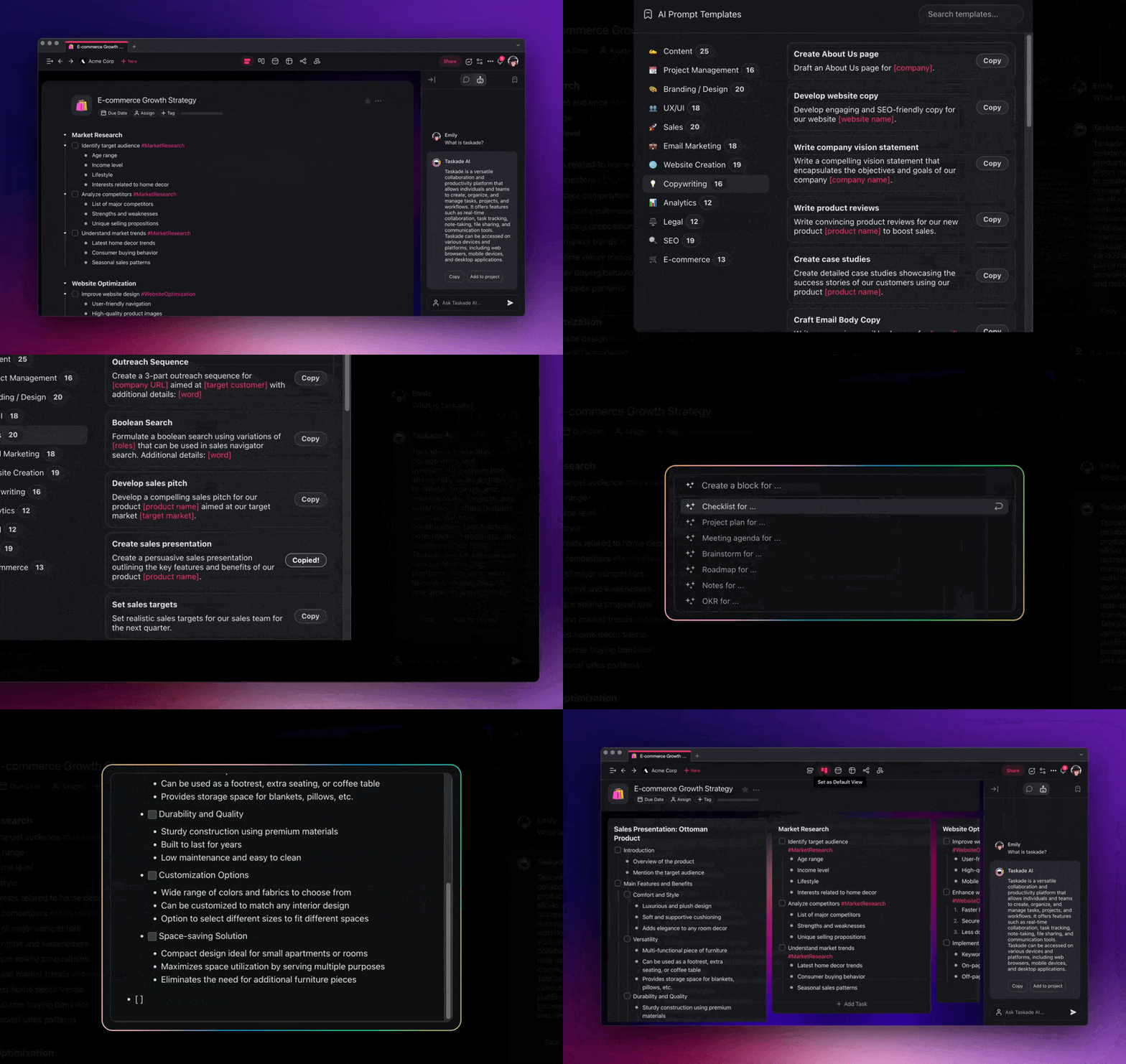
Run out of ideas? Taskade features dozens of AI prompt templates to choose from.
- To access AI prompts:
- Click the AI Prompts button at the top of the AI Chat, or
- Click your profile avatar (bottom-left corner) ➡ AI Prompt Templates.
- Choose a prompt and click Copy to save it to the clipboard.
- Paste the prompt to the Workflow Generator, AI Assistant, or AI Chat.
Choose a Language for AI Responses
AI responds in the language of the prompt or context. Here's how to that:
- (method #1) Specify language in the prompt.
- e.g. "Respond in Spanish: What's the weather like in Madrid?"
(method #2) Provide context in the target language.
- e.g. "¿Cómo está el clima en Madrid?" will receive a response in Spanish.
AI Chat Use Cases
Want to make the most of Taskade AI? Here are a few ideas:
| 🤹♀️ Use Cases | 💬 Prompts to Use |
|---|---|
| 🌳 Generate outlines | Create a comprehensive outline for your article or business report, e.g. "Topic/title of your document." |
| 🔎 Find information | Ask AI Chat all kinds of questions to find information on a wide range of topics, e.g. "How far away is the moon." |
| 🧠 Brainstorm ideas | Generate ideas, expand on topics, and come up with creative solutions to problems, e.g. "Generate article ideas on topic X." |
| 🤝 Create meeting agendas | Create high-level meeting agendas for your next team sync-up. e.g. "Create a meeting agenda for a 15-minute meeting." |
💡 Note: While Taskade AI is a powerful tool, it has a few limitations in its current stage of development. Like any other AI platforms, Taskade AI may make mistakes or produce unintended results. It is always a good idea to verify and double-check the output for incorrect information, biased answers, or inconsistencies.
Supported AI Models
Taskade AI Chat supports 15+ frontier models from OpenAI, Anthropic, Google, and leading open-source providers. Models are automatically updated as new versions become available. Switch between models at any time during a conversation.
Chat Modes
Taskade AI Chat offers multiple conversation modes:
- Standard Chat — General-purpose AI conversation with full model selection
- Agent Chat — Converse with a trained AI agent that has access to your workspace knowledge and tools
- Research Mode — Web search-enabled chat for up-to-date information
- Multi-Agent Chat — Coordinate multiple specialized agents in a single conversation
Workspace DNA — Every Taskade workspace is powered by three interconnected pillars: Memory (Projects & Databases), Intelligence (Custom AI Agents), and Execution (Automations). Together they form a continuous feedback loop that makes your workspace smarter over time.
Start Building
Ready to get started? Create your first project and experience the power of AI-driven productivity.
Explore the Community
🌎
Browse templates, agents, and apps built by the Taskade community at taskade.com/community.
How to Chat With AI in Taskade
Open a project and start typing. That is the whole idea. Taskade AI Chat lives inside the project, so it already knows the tasks, notes, and files around it. You ask, it answers, and you keep the parts you want.
Here is the full path, start to finish:
- Open any project in your workspace.
- Click the robot icon at the top of the chat box.
- Type a prompt in plain English, like "Summarize the open tasks in this project."
- Press Enter to get a streaming answer.
- Click Copy to project to drop the answer straight into your editor.
That is the basic chat. To make it smarter, point the chat at a custom AI agent. A plain chat answers from the project in front of it. An agent answers from everything you have trained it on, and it can act using tools.
| You want to | Use this |
|---|---|
| A quick answer about the current project | Standard AI Chat (robot icon) |
| Answers from your own files, docs, and links | Custom AI agent in the chat |
| A whole team of specialists in one thread | Multi-agent chat |
| The assistant that can build agents for you | Taskade EVE |
| Up-to-date facts from the web | Research mode in the chat |
Make AI Chat Smarter With an Agent
Swap the standard chat for a custom AI agent when you need answers grounded in your own knowledge. A standard chat reads the project you are in. An agent reads the projects, files, links, and videos you have trained it on, and it remembers them across every chat.
Here is how to chat with one:
- Open a project and click the chat balloon icon in the bottom-right.
- Click the selector at the top of the chat window.
- Pick your custom AI agent from the list.
- Type your prompt, or type
/to run one of its commands.
Each agent ships with 34 built-in tools plus the full 100+ bidirectional integrations catalog. Triggers pull events in, actions push data out. That means the chat can do more than talk. It can create tasks, draft an email, search the web, or kick off an automation. See Custom AI Agents to build your first one, or ask Taskade EVE to build it for you from a single sentence.
Tip: Train one agent for one job. A support agent knows your docs. A sales agent knows your pricing and objections. Focused agents are easier to trust. See Agent Knowledge & Memory.
From Chat to Agent to Action
The reason Taskade AI Chat beats a generic chatbot is what happens after the answer. A plain chatbot stops at text. In Taskade, your chat can hand off to an agent, the agent can use tools, and a tool can trigger an automation that writes results back into your projects. The diagram below shows the loop.
The dashed arrow is the part that compounds. Every automation run writes results back into your projects. Those updates become new memory. The next time you chat, the agent already knows. This is Workspace DNA: Memory feeds Intelligence, Intelligence triggers Execution, Execution creates Memory.
Verify Your AI Chat Setup
Run through this checklist to confirm the chat is doing what you expect. The right column tells you exactly what to fix.
| Check | What it means and what to do |
|---|---|
| Chat answers about the current project | Standard AI Chat is working. You are ready to prompt. |
| Answers feel generic | Point the chat at a custom agent and train it on your files. |
| Agent does not know your data | Add sources in the agent's Knowledge tab. See Agent Knowledge. |
| Agent answers but will not act | Turn on the right tool or integration in the agent's tools. |
| You repeat the same prompt often | Save it as a /command. See Custom AI Agents. |
| The work should run on its own | Connect an automation so a trigger runs the chat for you. |
| You want a whole team on the thread | Switch to multi-agent chat. |
Frequently Asked Questions
What is Taskade AI Chat?
Taskade AI Chat is the chat box built into every Taskade project. You open a project, click the robot icon, type a prompt, and the AI answers using the contents of that project. It can generate task lists, summarize text, brainstorm ideas, and write content without leaving your work. It runs on 15+ frontier models from OpenAI, Anthropic, Google, and open-source providers.
How do I chat with AI in Taskade?
Open any project, click the robot icon at the top of the chat box, type a prompt in plain English, and press Enter. The AI streams an answer based on the project you are in. Click Copy to project to paste the answer into your editor. To use your own data, pick a custom AI agent from the chat selector instead.
Is Taskade AI Chat free to use?
Yes. AI Chat is included on every Taskade plan, including the Free plan, which starts with one-time AI credits. Paid plans add more credits and higher limits: Starter is $6 per month, Pro is $16 per month (the Popular plan), Business is $40 per month, Max is $200 per month, and Enterprise is $400 per month, all billed annually. AI usage is metered in credits, not seats.
How is AI Chat different from ChatGPT?
A generic chatbot starts with a blank slate every time. Taskade AI Chat reads the project you are in, so it already knows your tasks, notes, and files. It can also use a custom AI agent trained on your own knowledge, run 34 built-in tools, reach 100+ integrations, and trigger automations. It answers and acts inside the same workspace where the work lives.
Can I switch AI models in the chat?
Yes. Taskade AI Chat supports 15+ frontier models from OpenAI, Anthropic, Google, and leading open-source providers. You can switch between them at any point in a conversation. Models update automatically as new versions ship, so you do not need to manage versions yourself.
Can I chat with my own AI agent?
Yes. Open the chat, click the selector at the top, and pick your custom AI agent. The agent answers using the knowledge you trained it on and remembers context across chats. Type / to run its saved commands. See Custom AI Agents to build one, or ask Taskade EVE to build it for you.
Can my team chat with AI together?
Yes. Shared AI chats let you and your teammates talk to Taskade AI in the same thread, search the web, share ideas, and see what others are asking. Open the chat box, choose Taskade AI from the selector, then invite people with the add-person button. A tooltip shows whether the chat is public or private.
Can AI Chat answer questions about my files?
Yes. Upload a report, spreadsheet, contract, or PDF, then ask the chat for key findings. AI Chat answers based on the contents of the project and any documents you add. This works for data analysis, contract review, and research summaries. See AI Chat with Documents.
Can AI Chat do more than answer questions?
Yes, once you point it at an agent. A standard chat replies with text. An agent can create tasks, draft emails, search the web, and trigger automations using 34 built-in tools and 100+ integrations. That is the jump from a chatbot that talks to a teammate that does the work.
What languages does AI Chat support?
AI Chat replies in the language of your prompt or context. To get a Spanish answer, either ask in Spanish or add "Respond in Spanish" to your prompt. The same approach works for any supported language, so you can keep a multilingual workspace in one chat.
How do I save my chat history?
Taskade saves your chat history automatically, so you can reopen the AI Chat window and continue where you left off. To clear it, click the three dots in the top-right corner of the chat and choose Clear history.
Ready to try it? Start free → and open the chat box in your first project.
Related guides
- Custom AI Agents — Train an agent on your own data so the chat knows your business
- Multi-Agent Teams — Put a team of specialists in one chat thread
- Taskade EVE Assistant — The meta-assistant that can build agents for you
- AI Agent Chat — Chat with custom agents versus project-scoped AI Chat
- Agent Knowledge & Memory — Persistent context across every chat
- AI Chat with Documents — Ask questions about uploaded files
- Build an AI Agent: The Complete Playbook — The full path from chat to working agent