

TL;DR: Taskade uses a 7-tier permission model: Owner, Maintainer, Editor, Commenter, Collaborator, Participant, Viewer — never "Admin". Roles cascade from workspace → folder → project but can be overridden at any level. Owner is the only role that controls billing.
How permissions cascade
A user's effective role at any level is the most specific override. Workspace = baseline, folder = department override, project = per-document override.
What Are User Roles?
Are you a freelancer who works with multiple clients? Do you run your own business with multiple teams and departments? Taskade User Roles let you define the level of access other users have to your projects, workspaces, and folders.
💡 Note: Visit Hierarchy Structure to learn how to organize your workflows.
Set User Roles (Workspace/Folder)
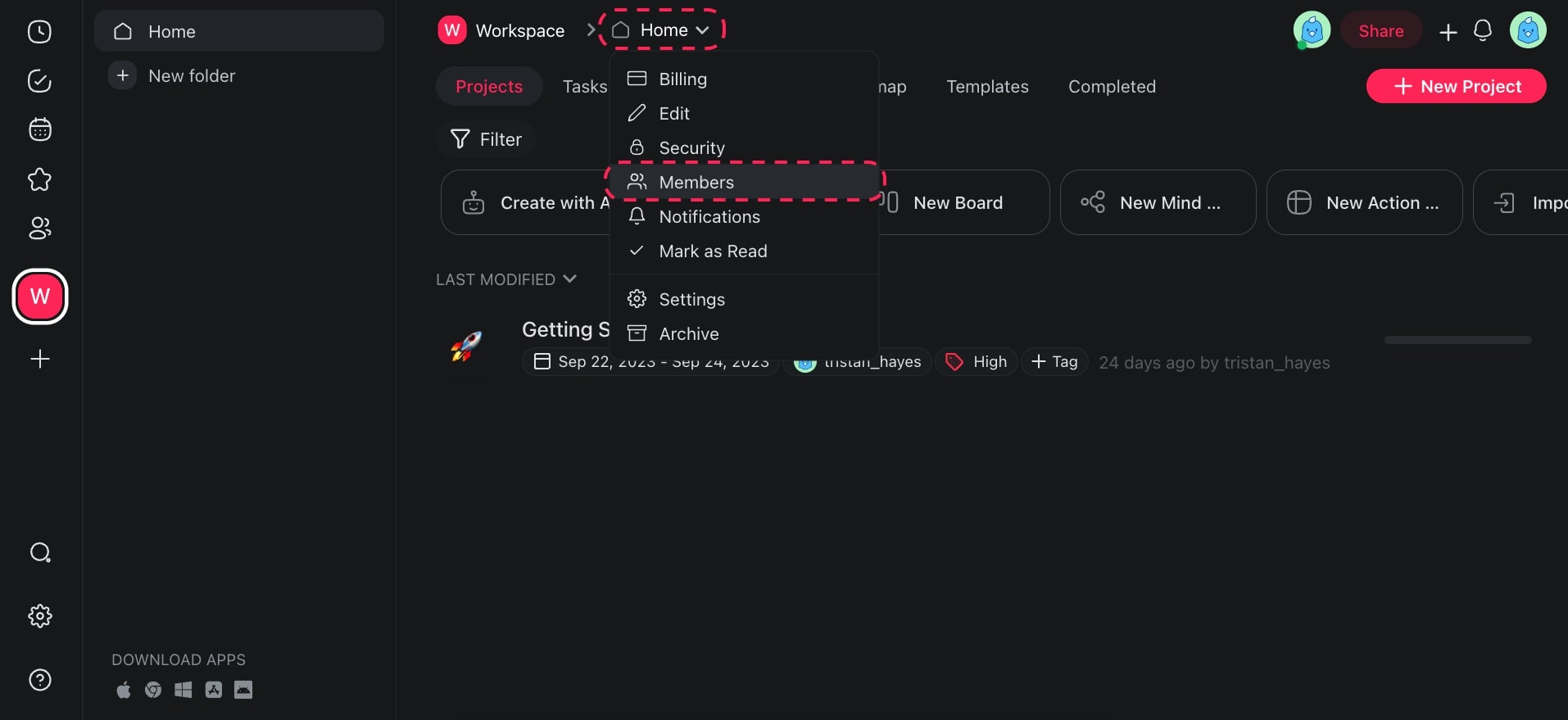
- Navigate to a workspace/folder.
- Click the ˅ arrow next to your workspace name and select 👥 Members.
- Set roles for existing workspace members or invite others.
Set User Roles (Projects)
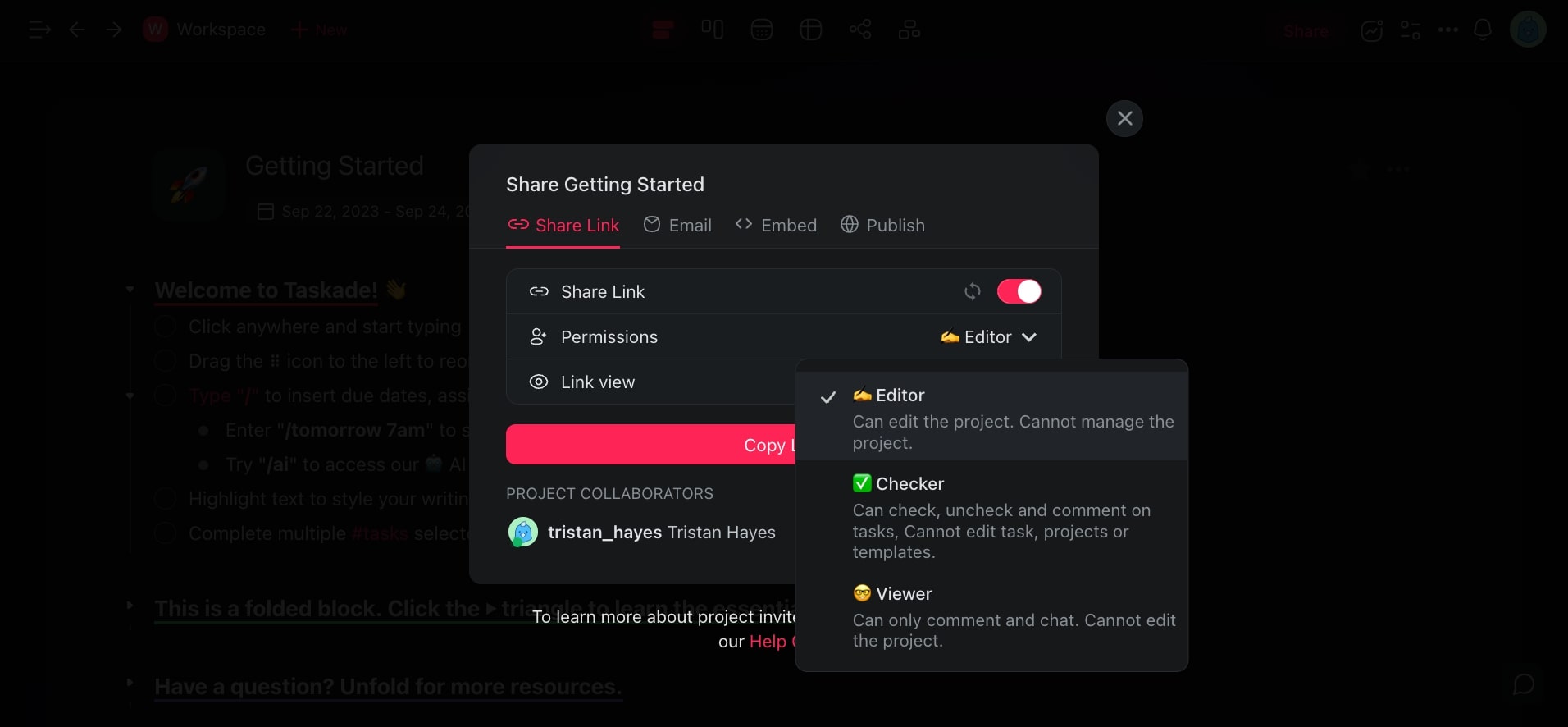
- Navigate to a project.
- Click your Profile Photo (to the left of the Share button).
- Set roles for existing Project members or invite others.
💡 Note: Team members with access to your main Workspace will not automatically have access to any Folders you create.
The 7-Tier Role Model
Taskade has 7 user roles, each with a different level of access. Roles cascade from workspace → folder → project, but you can override them at any level:
| Role | Read | Comment | Edit | Manage settings | Publish | Billing |
|---|---|---|---|---|---|---|
| 🦄 Owner | ✅ | ✅ | ✅ | ✅ | ✅ | ✅ |
| 🛠 Maintainer | ✅ | ✅ | ✅ | ✅ | ✅ | — |
| ✍️ Editor | ✅ | ✅ | ✅ | — | — | — |
| 💬 Commenter | ✅ | ✅ | — | — | — | — |
| 🤝 Collaborator | ✅ | ✅ | partial | — | — | — |
| 👥 Participant | ✅ | — | — | — | — | — |
| 👀 Viewer | ✅ | — | — | — | — | — |
Key distinctions:
- Owner is the only role that can change billing or delete the workspace itself
- Maintainer can publish Taskade Genesis apps and manage members but not change billing
- Editor can freely edit content but cannot change workspace settings or publish
- Commenter can leave comments and review without editing
- Collaborator is a scoped editor — can work on assigned items
- Participant can interact with tasks (check off items) but not edit project structure
- Viewer is read-only
Note on "Admin": Taskade does not use the term "Admin". The equivalent of what other platforms call "Admin" is split across Owner (full control + billing) and Maintainer (operational control without billing).
Tips
- Use the Viewer role for clients or stakeholders who only need to review progress without editing.
- Workspace-level roles set the baseline, but you can override permissions at the folder or project level for finer control.
- If you need to restrict access to specific folders within a shared workspace, remember that folders are private by default. Visit Create a Team (Folder) for details.
- Visit Hierarchy Structure to understand how permissions cascade across workspaces, folders, and projects.
Related guides
- Share a Project — Share individual projects
- Create a Workspace — Workspace-level role setup
- Team Folders — Folder-level overrides
- Invite Members — Add people to your workspace
- App Permissions — Role-based access to Taskade Genesis apps
- Hierarchy Structure — How roles cascade